
This article outlines the steps required to register a YubiKey and use it for multi-factor authentication (MFA) with SafeConsole managed encrypted USB devices. YubiKey works by enabling smart card authentication using the PIV (Personal Identity Verification) protocol.

*Note; Requires device version 7.1+ and is only applicable to the Sentry 5 Managed Device. If the device was connected to SafeConsole prior to being on 7.1+ it will need to but updated to 7.1 and factory reset for the MFA settings to apply. Updates can be found at https://datalocker.com/device-updates *
Prerequisites
Before beginning the registration process, ensure the following:
- You have a YubiKey device that supports PIV.
- Your YubiKey has been configured with a PIV certificate.
➤ Follow Yubico’s PIV setup guide

Step-by-Step Instructions
Step 1: Enable Smart Card Authentication in SafeConsole
- Log in to your SafeConsole administrator portal.
- Go to the Policies tab.
- Select the policy group for which you want to enable YubiKey-based authentication.
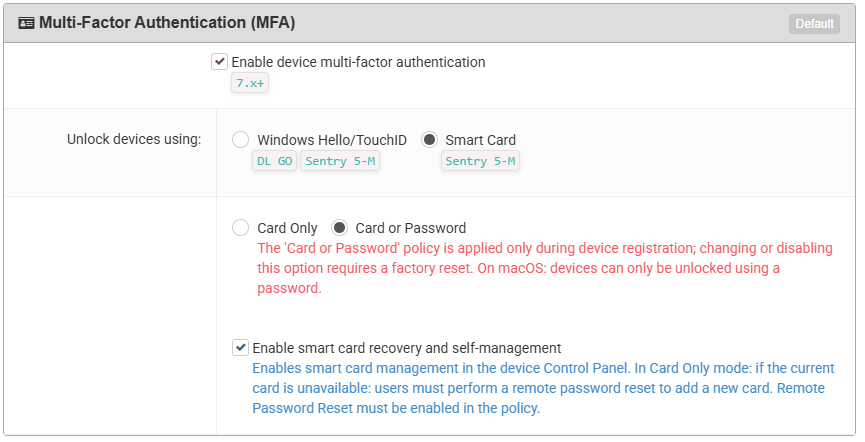
- Under Multi-Factor Authentication (MFA), enable by checking the Smart Card option.
- Choose one of the following enforcement modes:
- Card or Password – Requires both a password and YubiKey during registration.
- Card Only – Requires only YubiKey for unlock during registration.
- Save the policy changes.
Note: Smart Card Authentication only applies to newly registered devices. Existing registered devices must be reset and re-registered for the policy to take effect.

Step 2: Register a New Device with YubiKey
- Insert the encrypted USB device into your computer.
- During device registration, follow the on-screen prompts:
- For Card or Password mode:
- Set a device-local password.
- Authenticate with your configured YubiKey (PIV certificate required).
- For Card Only mode:
- Authenticate directly with your YubiKey (PIV certificate required).
- For Card or Password mode:
- Plus your YubiKey device in
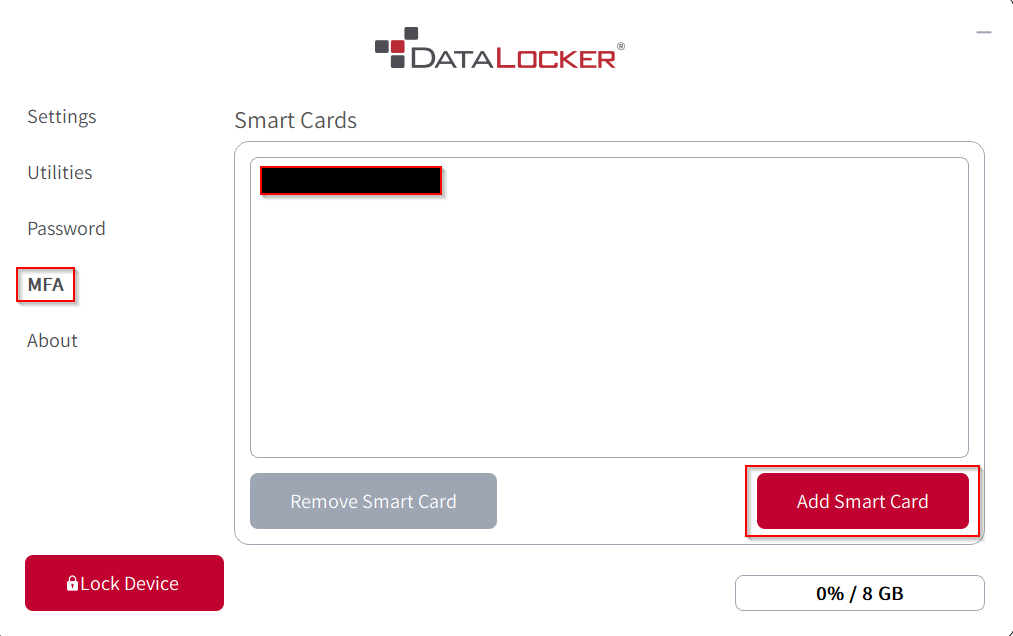
- In the Unlocker Control Panel select MFA and then press Add Smart Card. This will prompt you for your device password if you are using the Card or Password option in your policy selection.
- If your YubiKey device has been properly configured it will add the certificate;
- Complete the registration process as instructed.

Step 3: Unlocking a Device Using YubiKey
- Insert your registered device into a USB port.
- When prompted, insert and authenticate using your YubiKey.
- Access to the secure contents will be granted if authentication is successful.
Need Help?
Watch our tutorial video on unlocking devices with YubiKey.


Additional Tips
- Make sure your YubiKey remains inserted during any authentication step.
- For security and ease of management, log all device registration and unlock events through SafeConsole's audit trail feature.
- Confirm your organization's policies allow for hardware-based MFA like YubiKey prior to deployment.

For further assistance, contact your system administrator or SafeConsole support.