
Overview
This article walks you through configuring Microsoft Azure so that SafeConsole can forward device audit logs to Microsoft Sentinel via the Azure Log Ingestion API. When complete, all device events managed by SafeConsole will flow into a custom Log Analytics table that Sentinel can query, alert on, and correlate with other data sources.
The setup involves creating and connecting the following Azure resources:
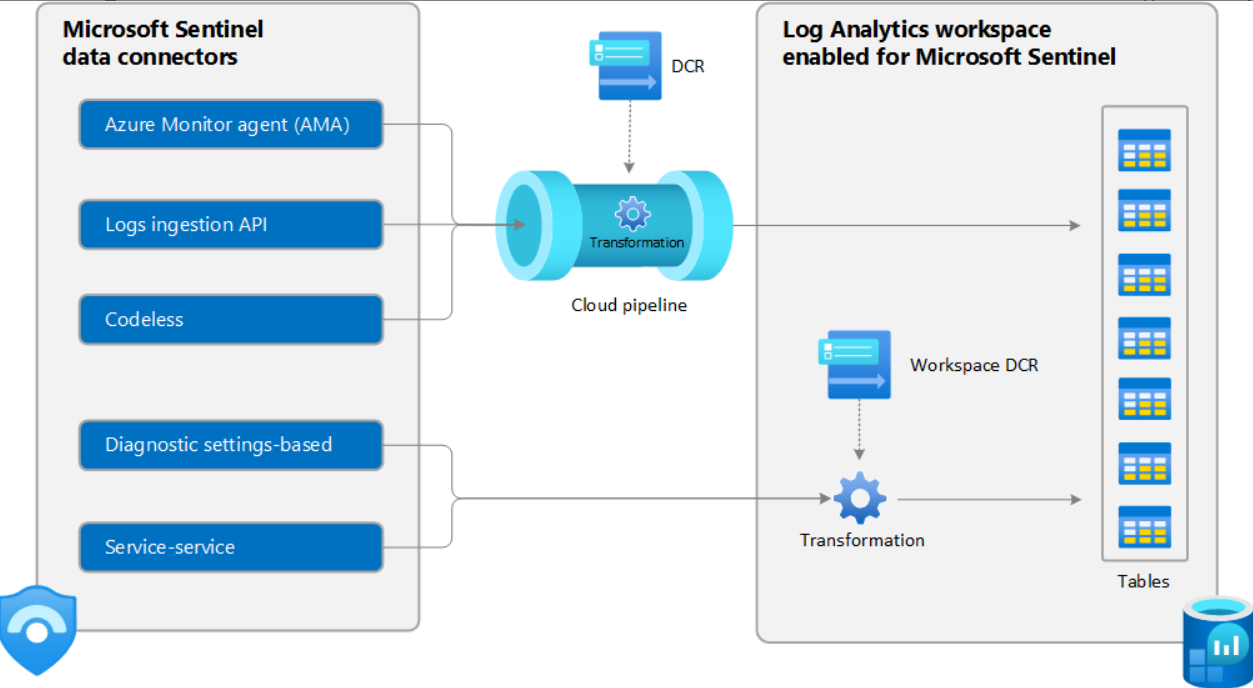
Architecture overview: SafeConsole sends logs via the Logs Ingestion API through the DCR transformation pipeline into Log Analytics tables used by Microsoft Sentinel.
For a full architectural overview, see the Microsoft documentation: Logs Ingestion API Overview
Prerequisites
Before beginning, ensure you have:
An active Azure subscription with permissions to create resources in a resource group.
The Owner or User Access Administrator role on the subscription or resource group (required to assign IAM roles).
Access to SafeConsole with administrator privileges to configure the SIEM integration.
Microsoft Sentinel already deployed and linked to a Log Analytics workspace, or the ability to create a new workspace.
Step 1 — Register an Application in Microsoft Entra ID
An app registration creates the service principal that SafeConsole uses to authenticate when sending logs to Azure.
1.1 Register the Application
In the Azure portal, navigate to Microsoft Entra ID > App registrations > New registration
Provide a descriptive display name (for example: safeconsole-siem-service-principal).
Leave the supported account type as the default (single tenant) unless your environment requires otherwise.
Click Register.
After registration, record the following values from the application overview page — you will need them when configuring SafeConsole:
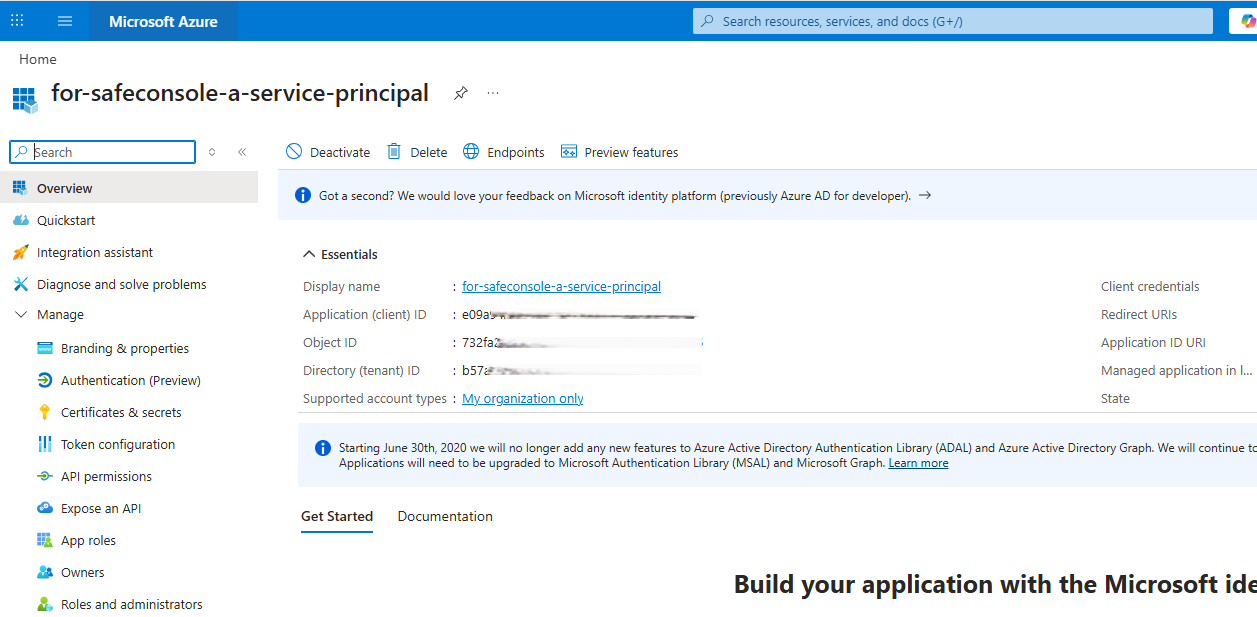
Figure: App registration Overview panel — copy the Application (client) ID (2) and Directory (tenant) ID (3) from the Essentials section.
1.2 Create a Client Secret
In the app registration, go to Certificates & secrets > Client secrets > New client secret
Enter a description and choose an expiration period appropriate for your organization.
Click Add.
Copy the Value immediately — it is only shown once.
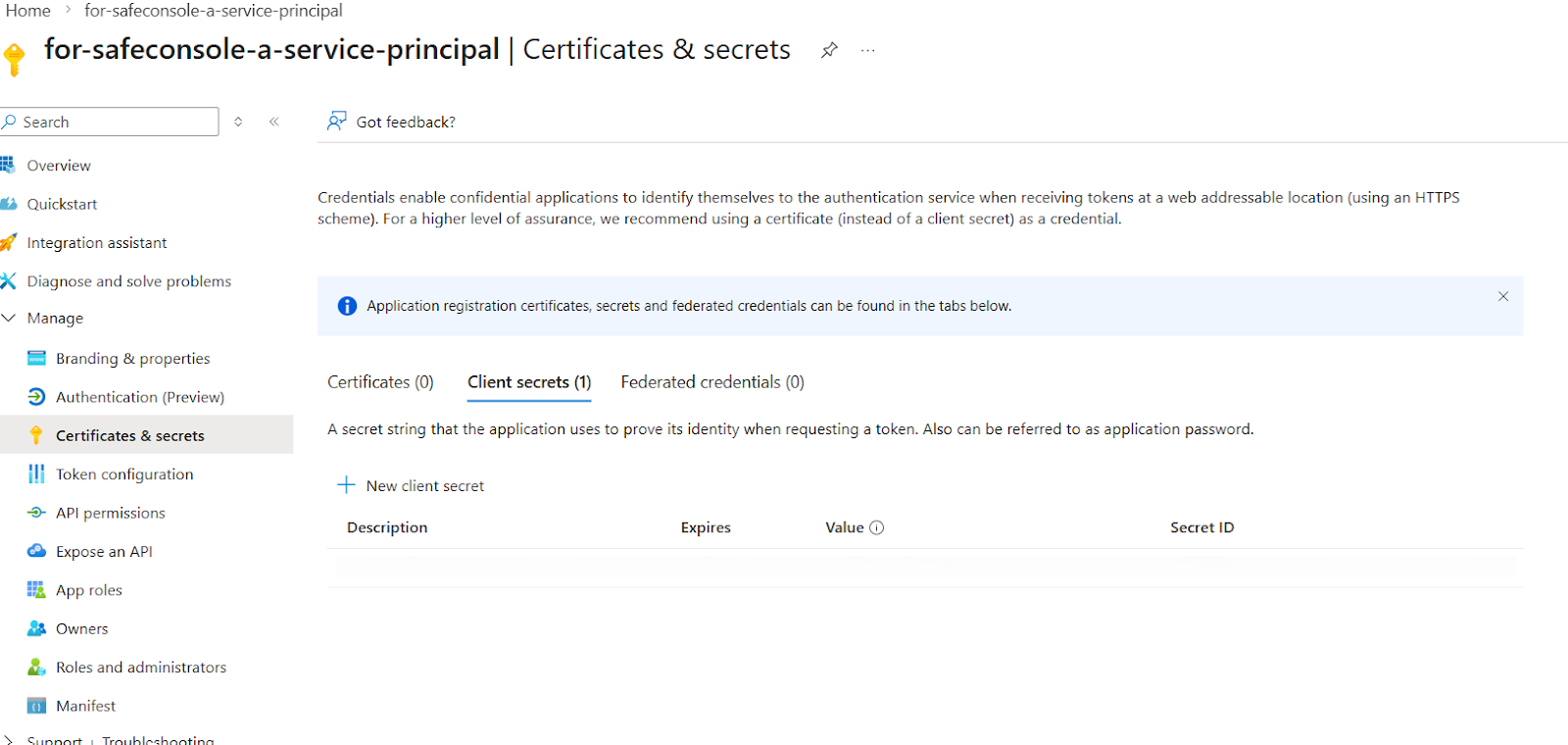
Figure (3)–(4): Certificates & secrets page — navigate here to create a new client secret.
1.3 Assign Subscription-Level Roles
Assign the required roles to the service principal. Navigate to Subscriptions > Access Control (IAM) > Add role assignment and search for your application name.
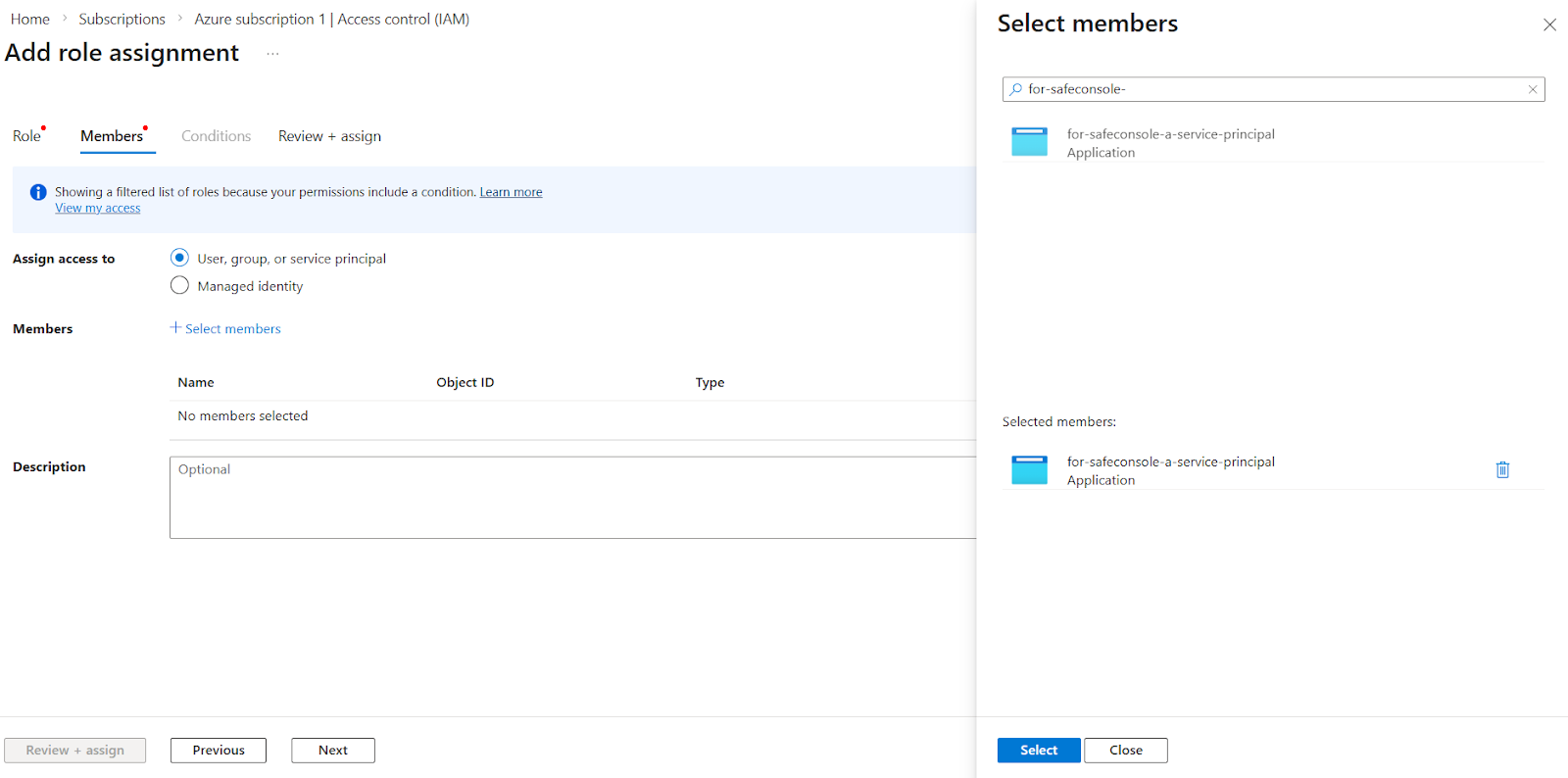
Add the following roles to the service principal;
Contributor
Log Analytics Contributor
Monitoring Contributor
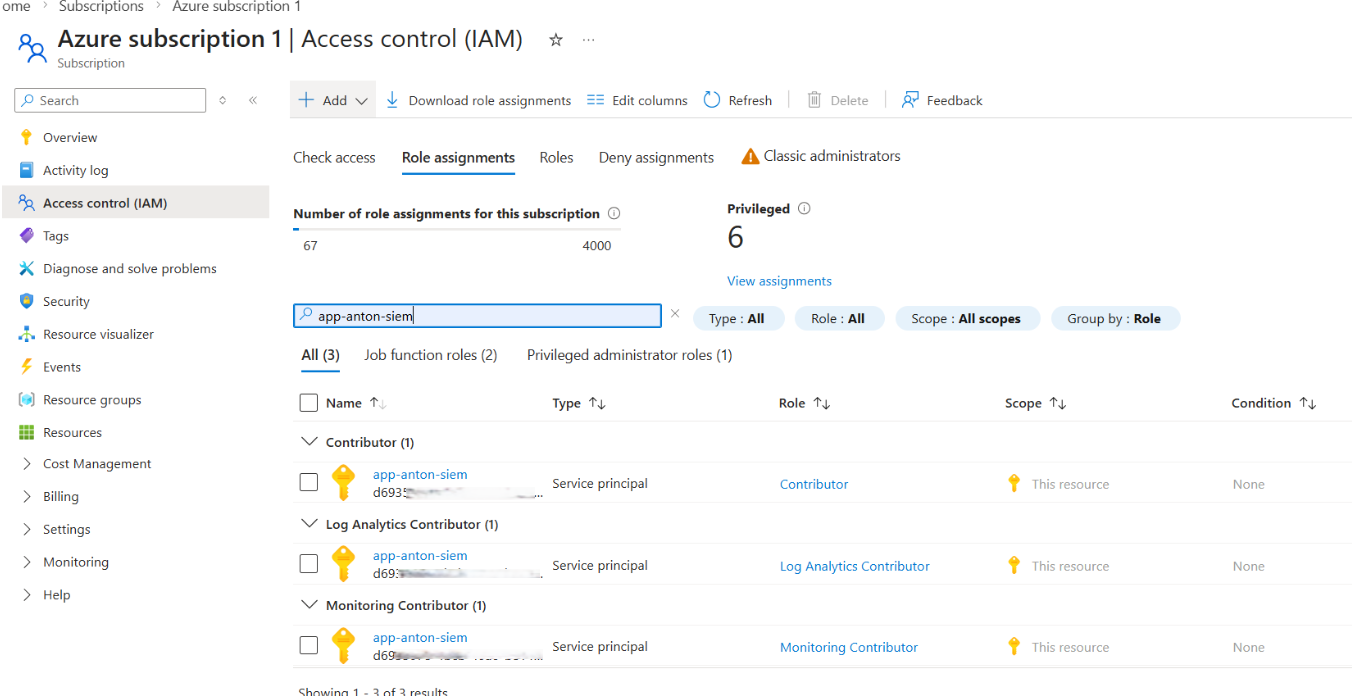
Figure (1): Subscription IAM — role assignments view filtered by service principal.
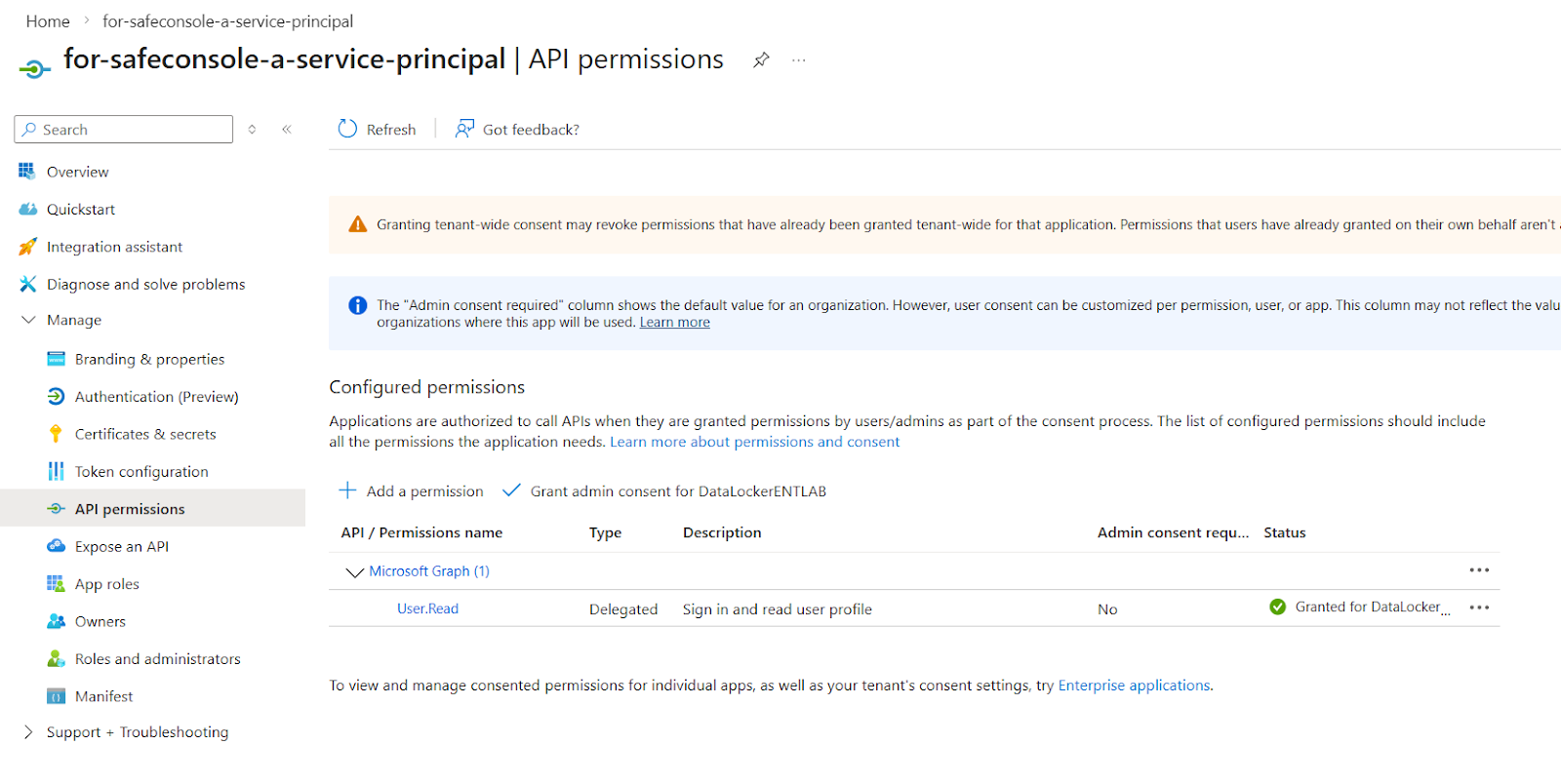
Figure (5): API permissions panel on the app registration — confirms the app registration is active.
Step 2 — Create a Log Analytics Workspace
The Log Analytics workspace (LAW) is the data store where all ingested logs are retained. Microsoft Sentinel runs on top of this workspace.
In the Azure portal, search for Log Analytics workspaces and click Create.
Select your subscription and resource group, provide a name (for example: safeconsole-log-analytics-workspace), and choose a region.
Click Review + Create, then Create.
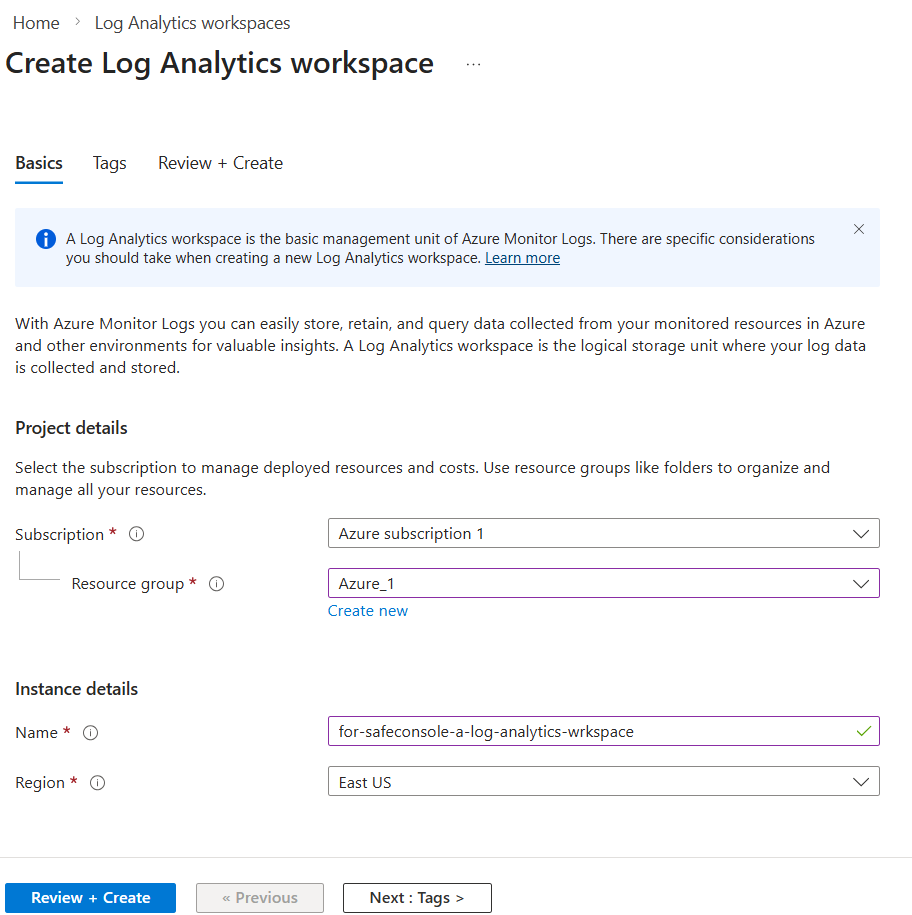
Figure (6)–(7): Create Log Analytics workspace form — fill in the Name field under Instance details.
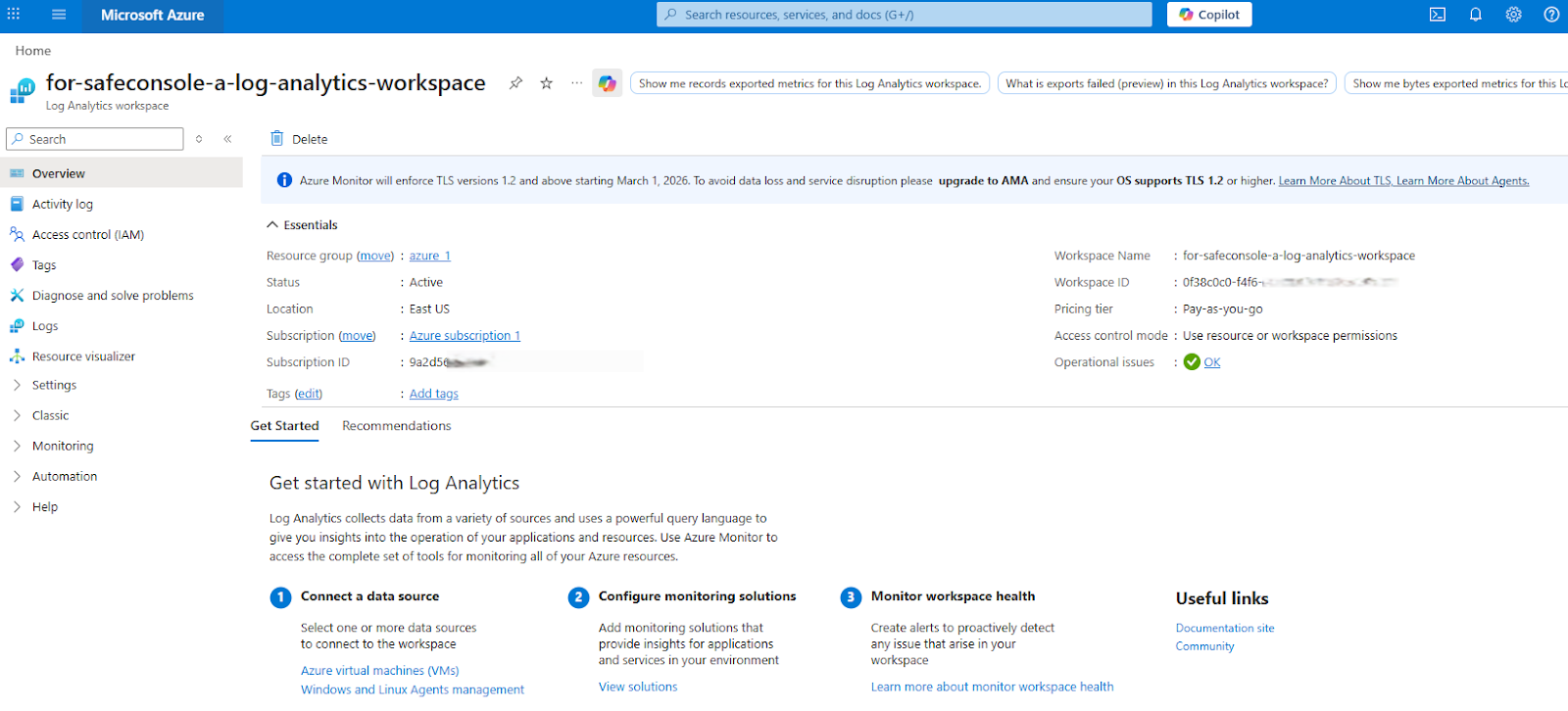
Figure (8): Log Analytics workspace overview after successful creation — Status should show Active.
The table creation wizard in Step 3 will also prompt you to create a Data Collection Endpoint (DCE). You can pre-create one now by searching for Data Collection Endpoints in the Azure portal:
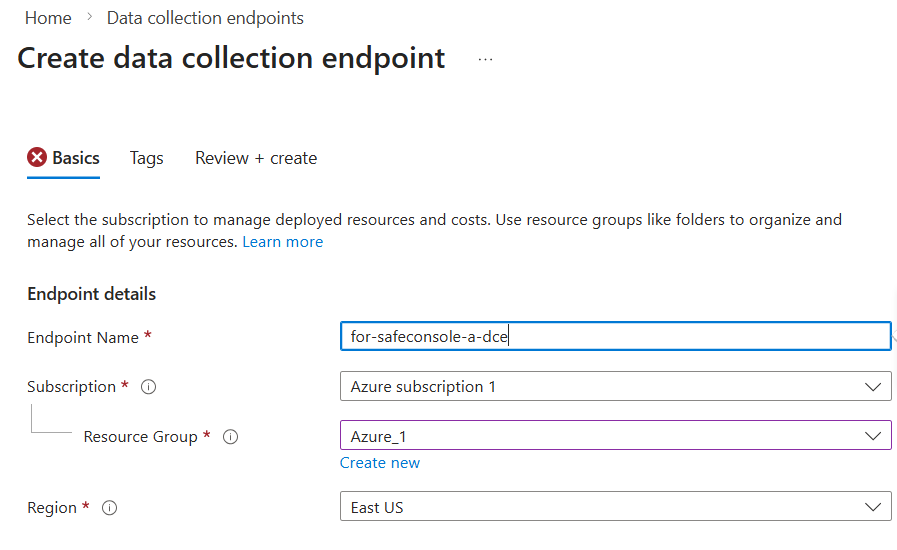
Figure: Create Data Collection Endpoint — provide an Endpoint Name and select your subscription and resource group.
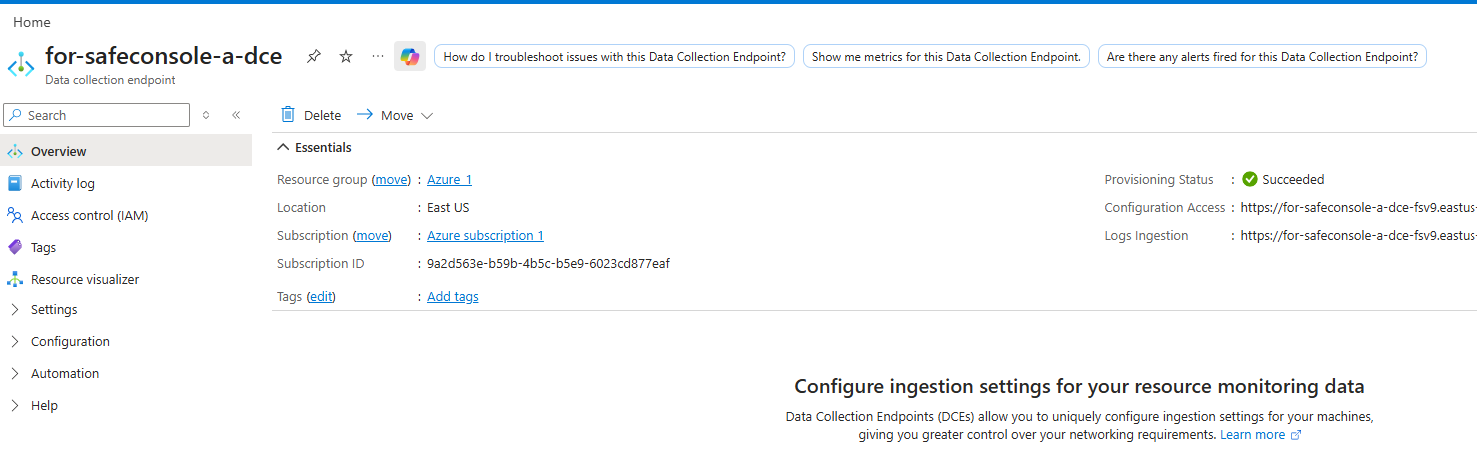
Figure: DCE overview after creation — copy the Logs Ingestion URL (2) from the right-hand Essentials panel for use in SafeConsole Step 5.
Step 3 — Create a Custom Log Table
A custom table in the Log Analytics workspace holds the structured log data that SafeConsole sends. Creating the table via the Azure portal also automatically generates the Data Collection Rule (DCR) and any required transformation.
3.1 Prepare a Sample JSON Payload
You need a sample JSON file that represents the structure of the log events SafeConsole will send. The file must be an array of objects, and every object must include a TimeGenerated field in ISO 8601 format. Example:
3.2 Create the Table in the Azure Portal
Navigate to your Log Analytics workspace and select Tables > Create > New custom log (DCR-based)
Upload your sample JSON file. Azure will infer the schema from the sample data.
Set a table name ending in _CL (for example: SafeConsoleLogs_CL).
Provide names for the new Data Collection Rule and Data Collection Endpoint when prompted. These resources will be created automatically.
Complete the wizard and click Create.
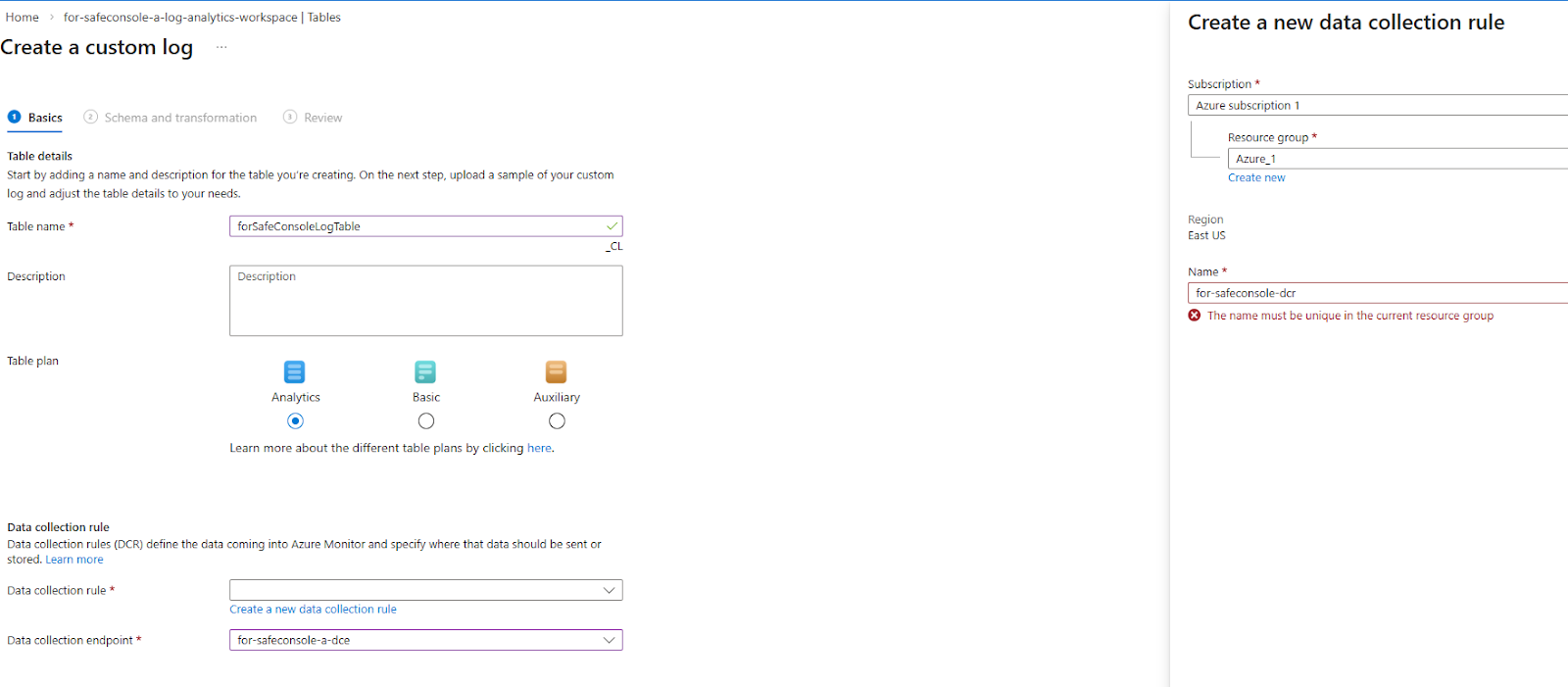
Figure (9)–(12): Create custom log form. (9) Step 3.2 entry point. (10) Select Analytics plan. (11) DCR name field in the right panel. (12) DCE endpoint field at the bottom.
3.3 Verify the Table
In the workspace, navigate to Logs and use the table browser to locate your new table. You can also run a quick KQL query to confirm the schema:
The table will show no data at this point — that is expected. Confirm the column names match your sample JSON.
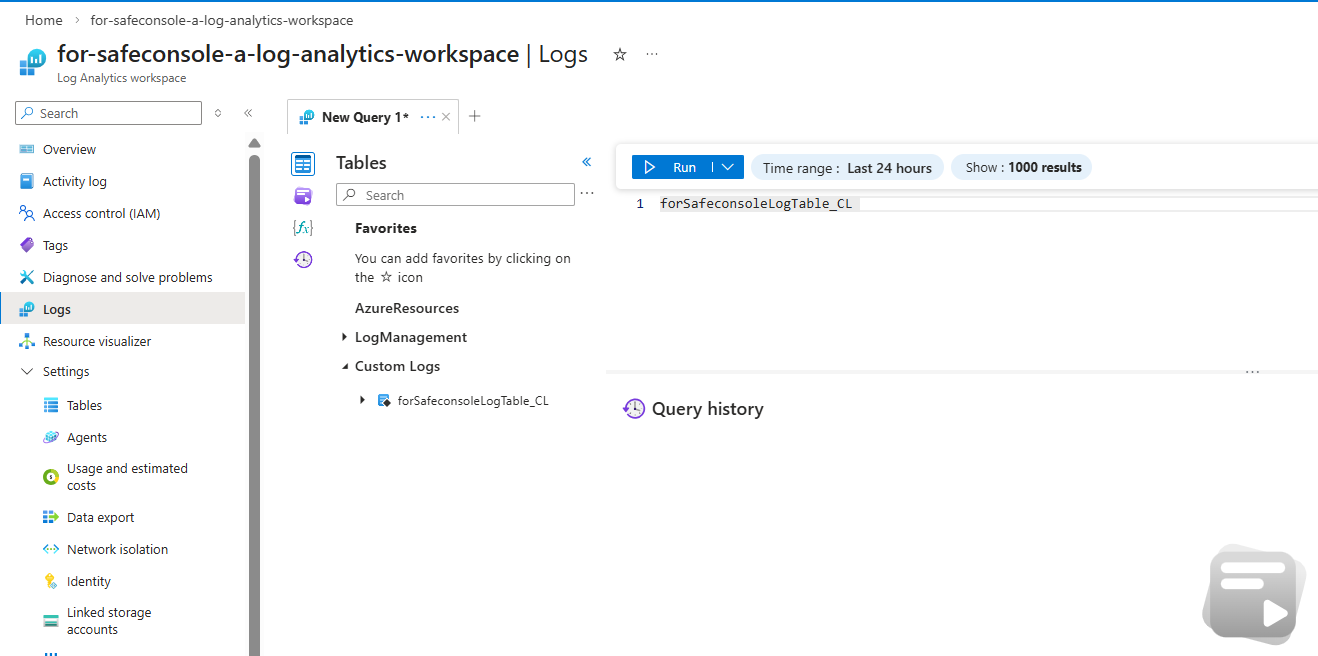
Figure (13)–(14): Log Analytics Logs view confirming the custom table appears under Custom Logs.
Step 4 — Configure IAM Roles
For the log data to flow from SafeConsole through to the table, the service principal must be granted specific roles on each Azure resource in the pipeline. The flow is:
SafeConsole ➡ Log Ingestion API ➡ DCE ➡ DCR ➡ Log Analytics Workspace
4.1 Data Collection Rule (DCR)
Navigate to: Monitor > Data Collection Rules > [your DCR] > Access Control (IAM)
Add role assignment: Monitoring Metrics Publisher — assigned to your service principal, scope: This resource.
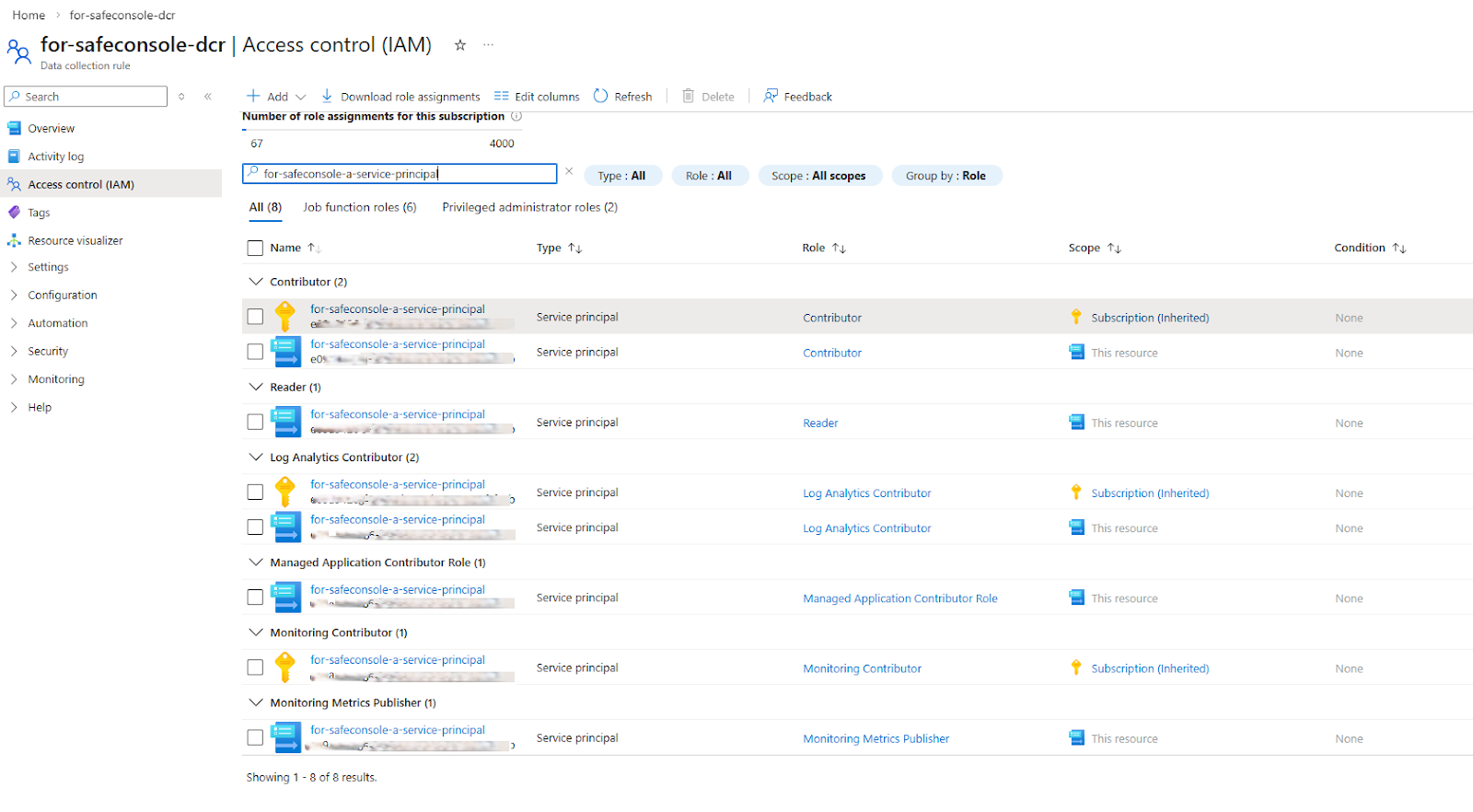
Figure (15)–(16): DCR Access Control (IAM) — all roles assigned to the service principal. Monitoring Metrics Publisher at ‘This resource’ scope is required (16).
The DCR Overview page also shows the Immutable ID you will need in Step 5:
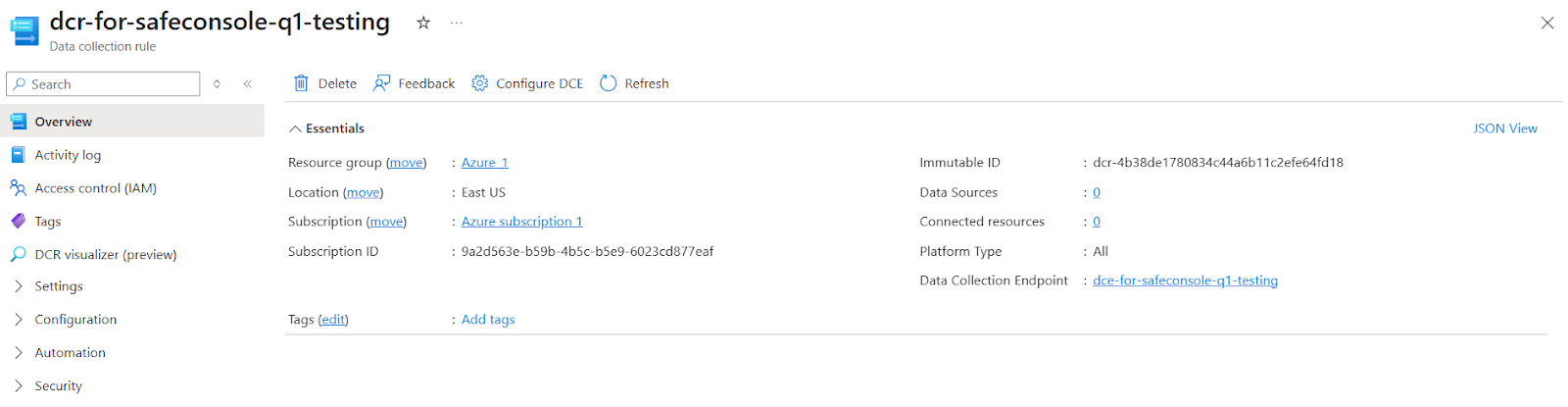
Figure (20): DCR overview — copy the Immutable ID value from the right-hand panel for use in SafeConsole.
4.2 Data Collection Endpoint (DCE)
Navigate to: Monitor > Data Collection Endpoints > [your DCE] > Access Control (IAM)
Add role assignment: Monitoring Metrics Publisher — assigned to your service principal, scope: This resource.
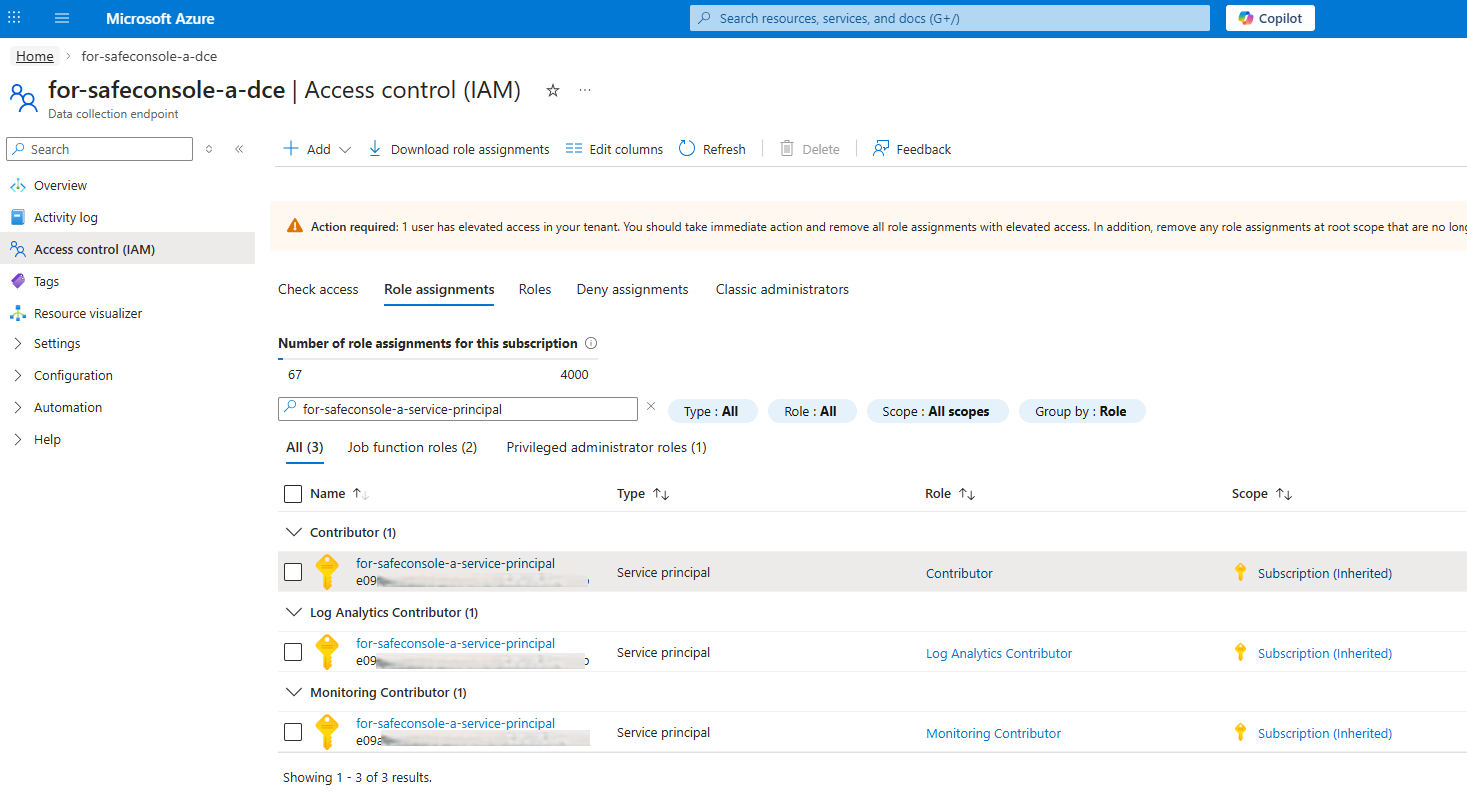
Figure (17): DCE Access Control (IAM) — roles assigned to the service principal.
4.3 Log Analytics Workspace
Navigate to: Log Analytics Workspace > [your workspace] > Access Control (IAM)
Add role assignment: Log Analytics Contributor — assigned to your service principal, scope: This resource.
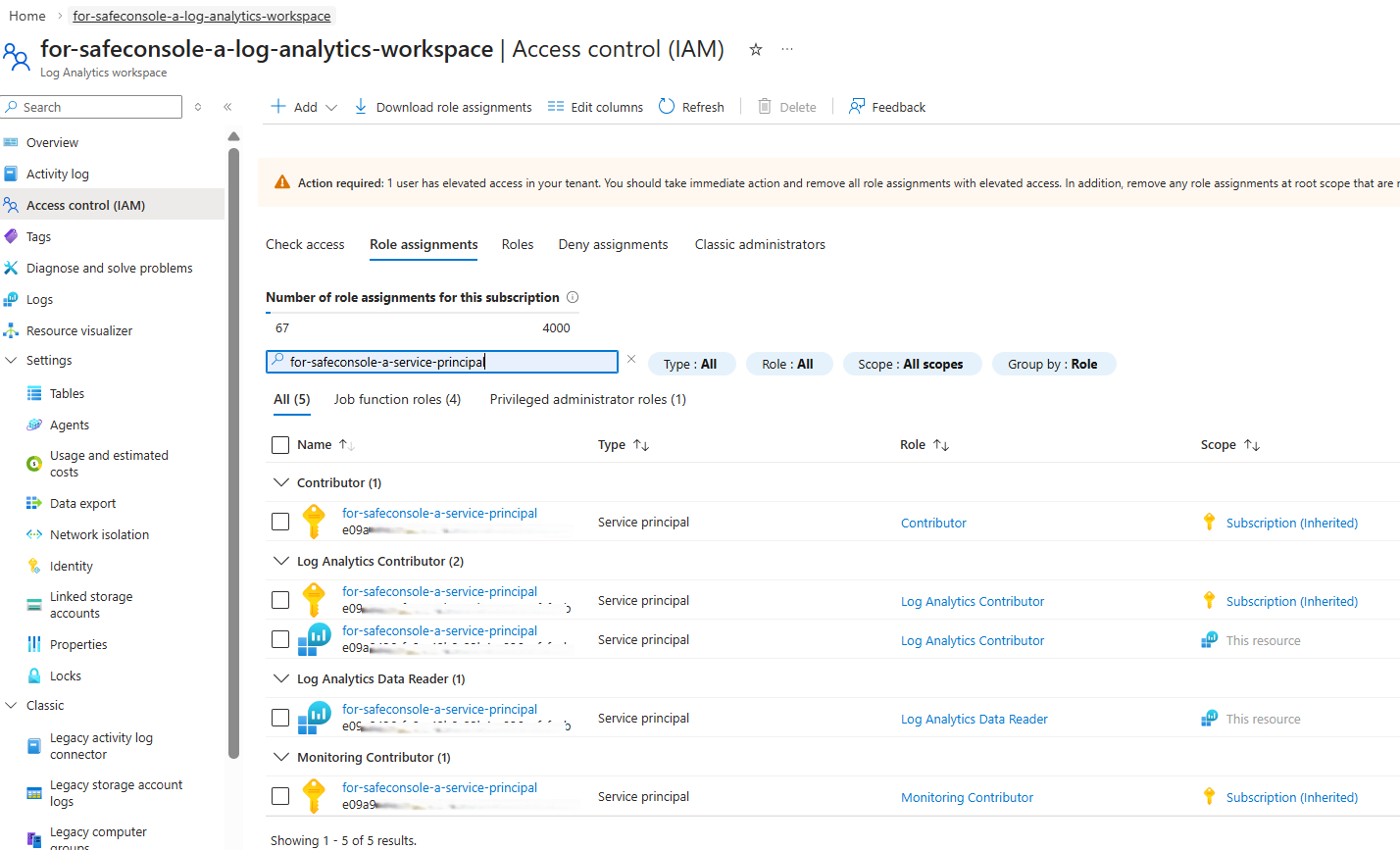
Figure (18)–(19): LAW Access Control (IAM) — Log Analytics Contributor at ‘This resource’ scope is required (19).
Step 5 — Configure SafeConsole SIEM Settings
With all Azure resources provisioned and roles assigned, you can now enter the credentials and configuration into SafeConsole.
Log in to SafeConsole and navigate to Settings > SIEM
Select Microsoft Sentinel / Azure Sentinel as the SIEM type.
Fill in each field as shown in the figure below. Refer to the numbered labels (21)–(27):
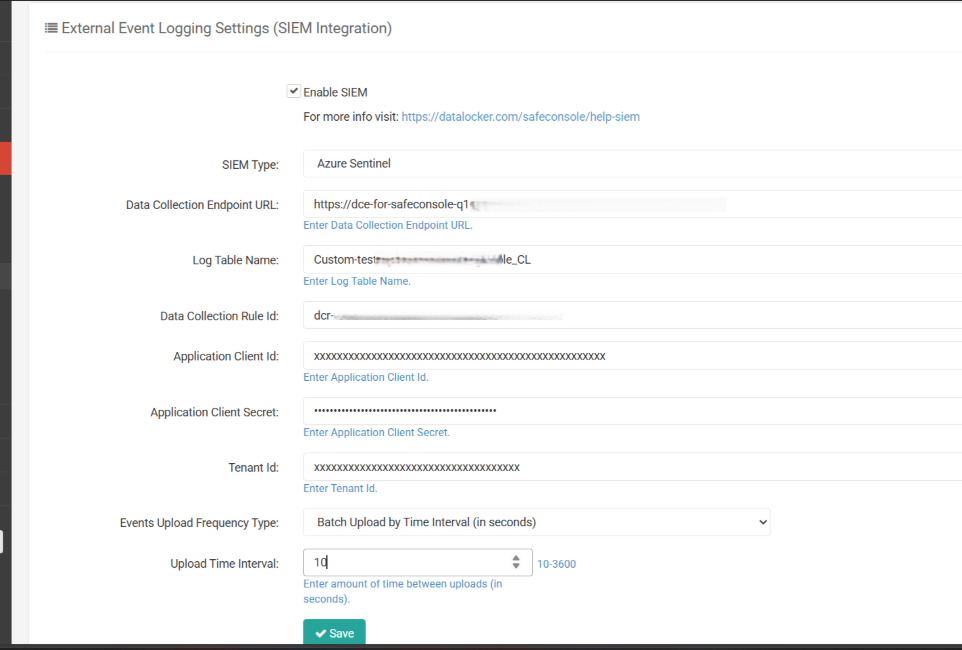
Figure (21)–(27): SafeConsole External Event Logging Settings — each field labeled with its corresponding badge number.
Checkpoint: Pre-flight Verification
Before testing the end-to-end flow, confirm that all of the following resources exist and are correctly linked:
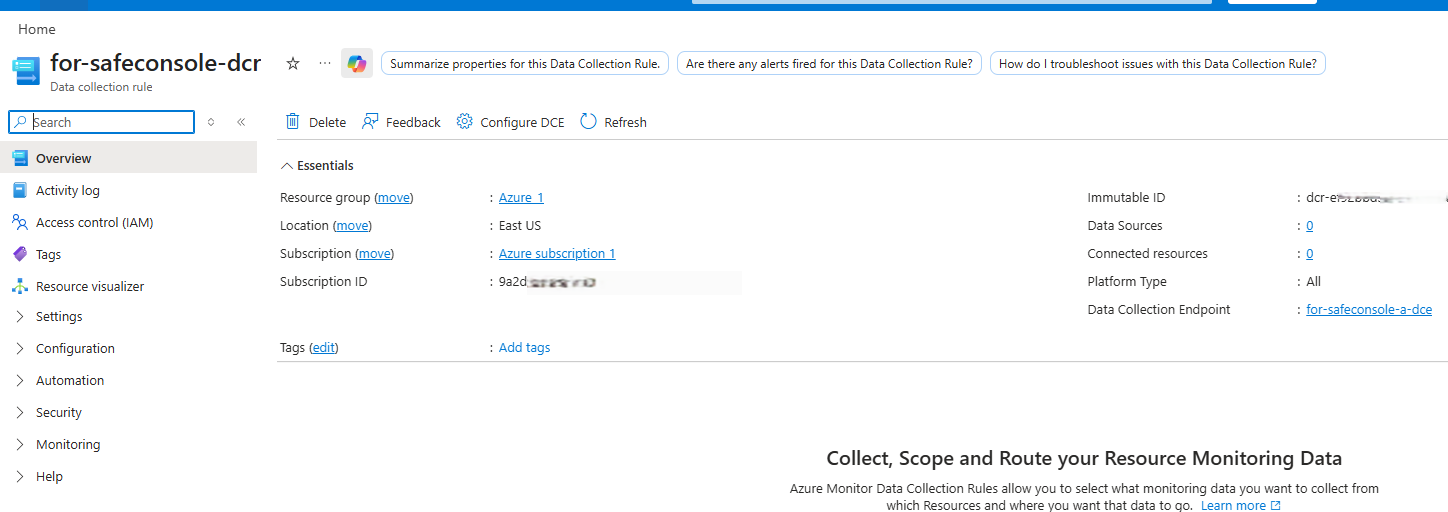
Figure: DCR overview — confirms the Immutable ID (2) and the linked Data Collection Endpoint (3).
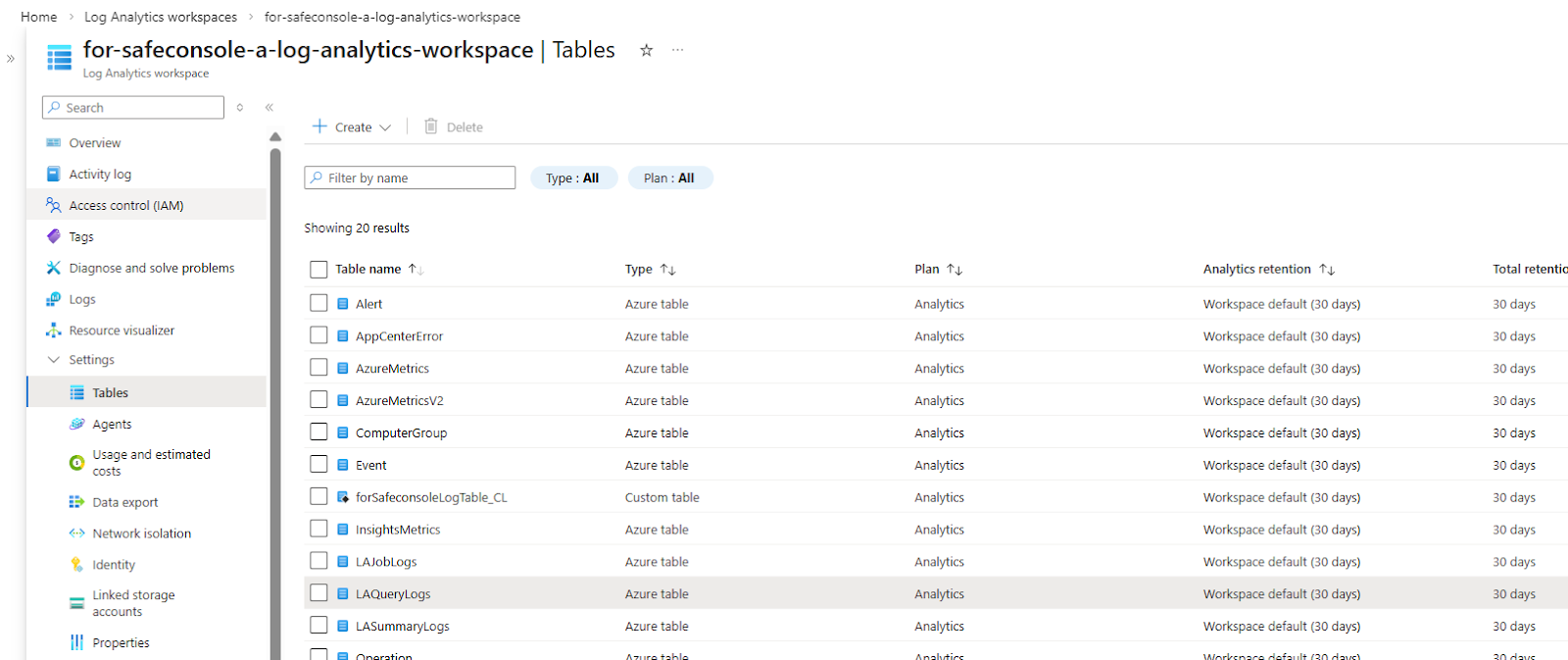
Figure: LAW Tables list — the custom table (2) should appear under Custom table type with the Analytics plan.
Troubleshooting
If logs are not appearing in the Log Analytics table after configuring SafeConsole, use the following diagnostics.
Enable Log Analytics Workspace Diagnostics
Navigate to: Log Analytics Workspace > Diagnostic settings > Add diagnostic setting
Enable the allLogs and AllMetrics categories.
Direct the output to the same workspace (or another workspace for isolation).
Once enabled, query LAQueryLogs and Operation tables to identify ingestion errors or schema mismatches.
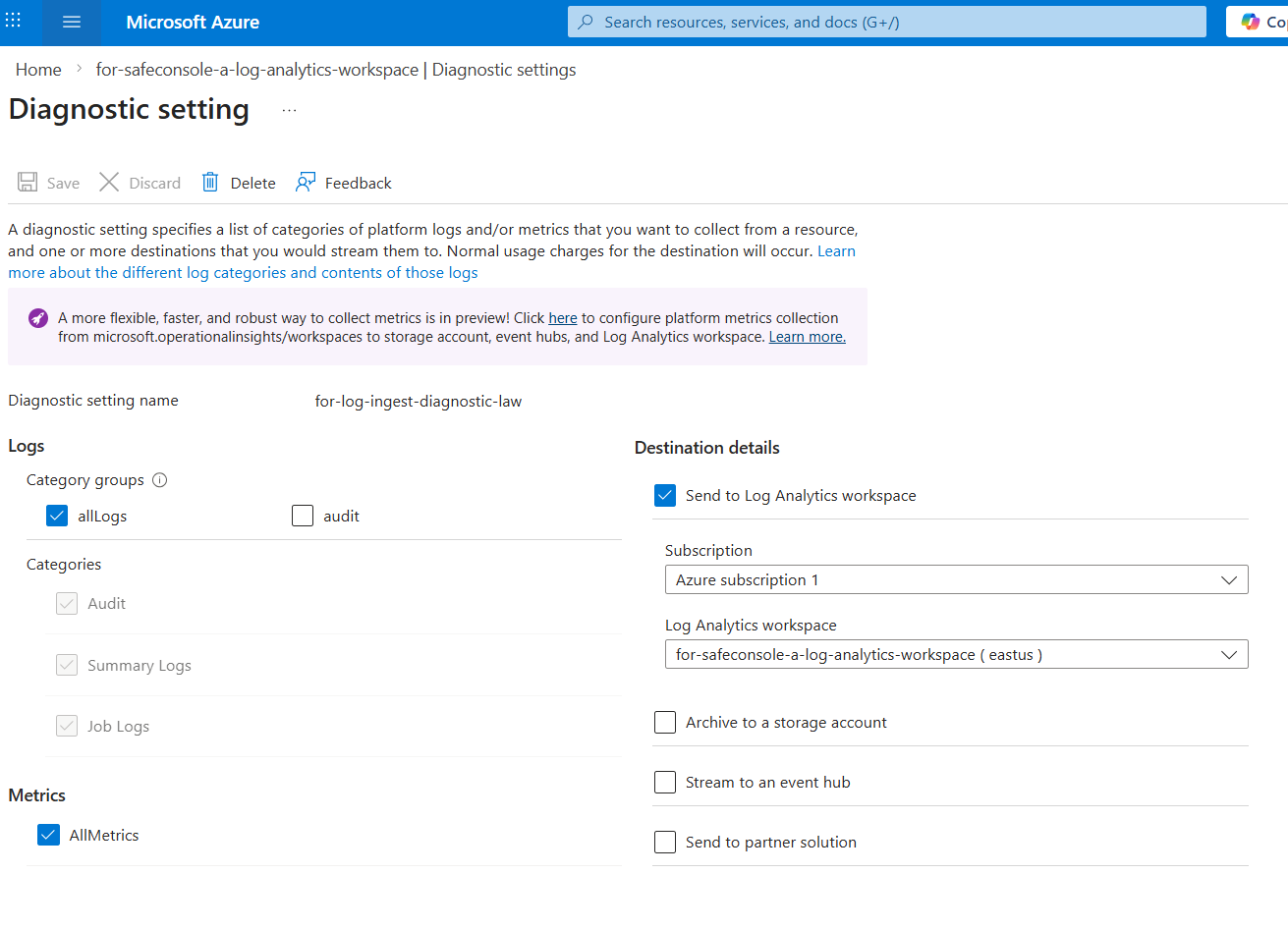
Figure (28)–(30): LAW Diagnostic setting — enable allLogs category (29) and send to the Log Analytics workspace (30).
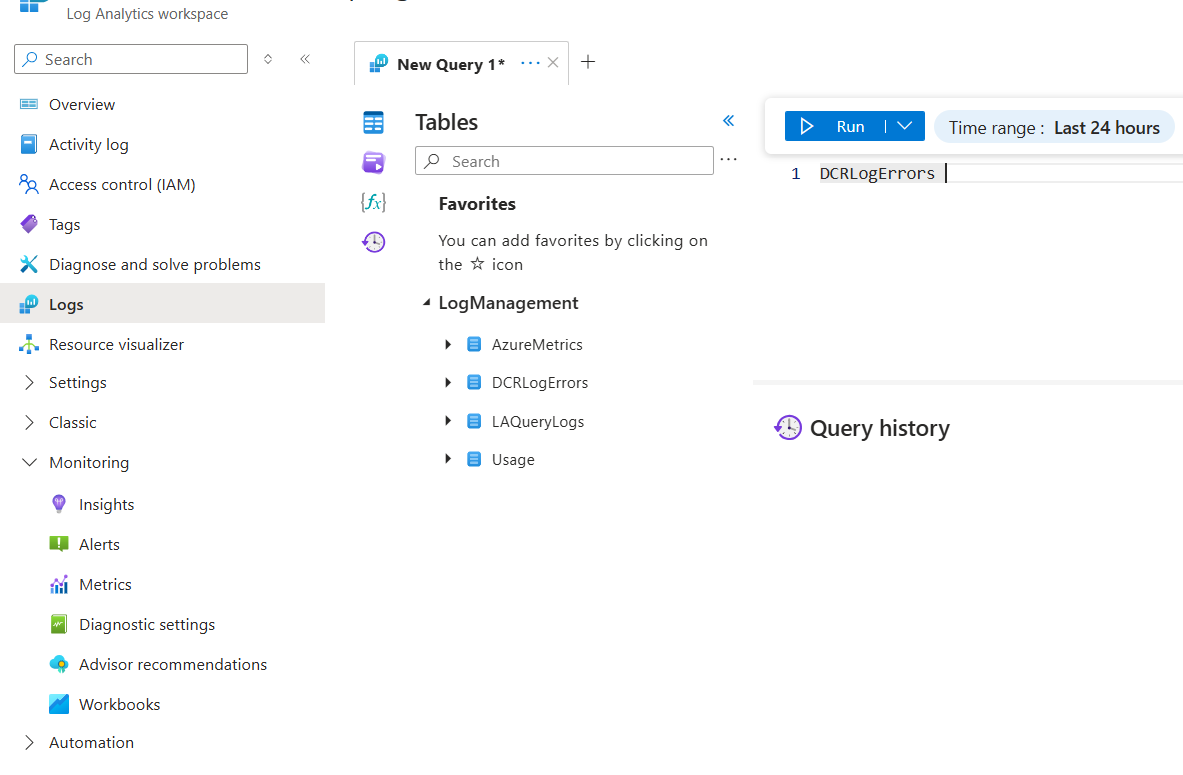
Figure (31): Query DCRLogErrors in the LAW Logs view to surface ingestion errors.
Enable Data Collection Rule Diagnostics
Navigate to: Monitor > Data Collection Rules > [your DCR] > Diagnostic settings > Add diagnostic setting
Enable the allLogs category.
Direct the output to your Log Analytics workspace.
Query the DCRLogErrors table to surface transformation errors, schema validation failures, or permission issues.
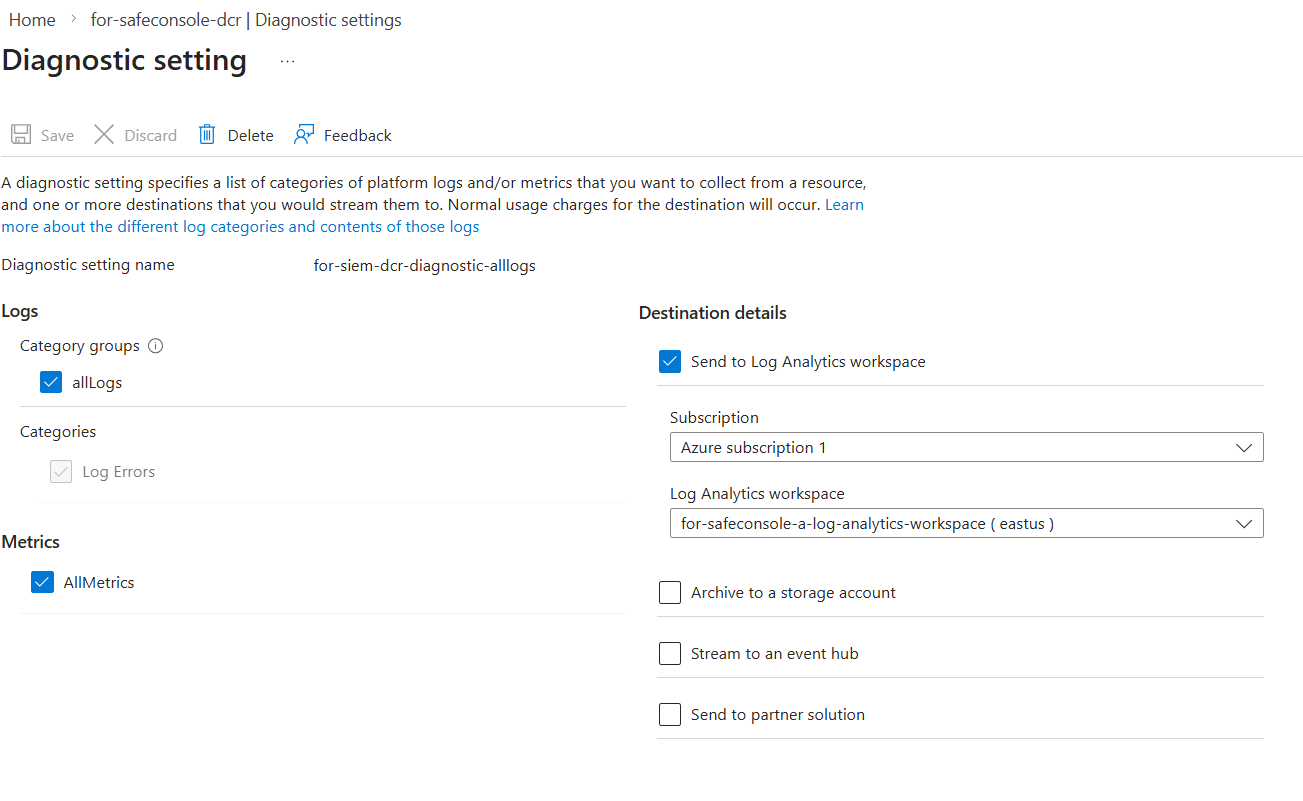
Figure (32)–(34): DCR Diagnostic setting — enable allLogs category (33) and send to Log Analytics workspace (34).
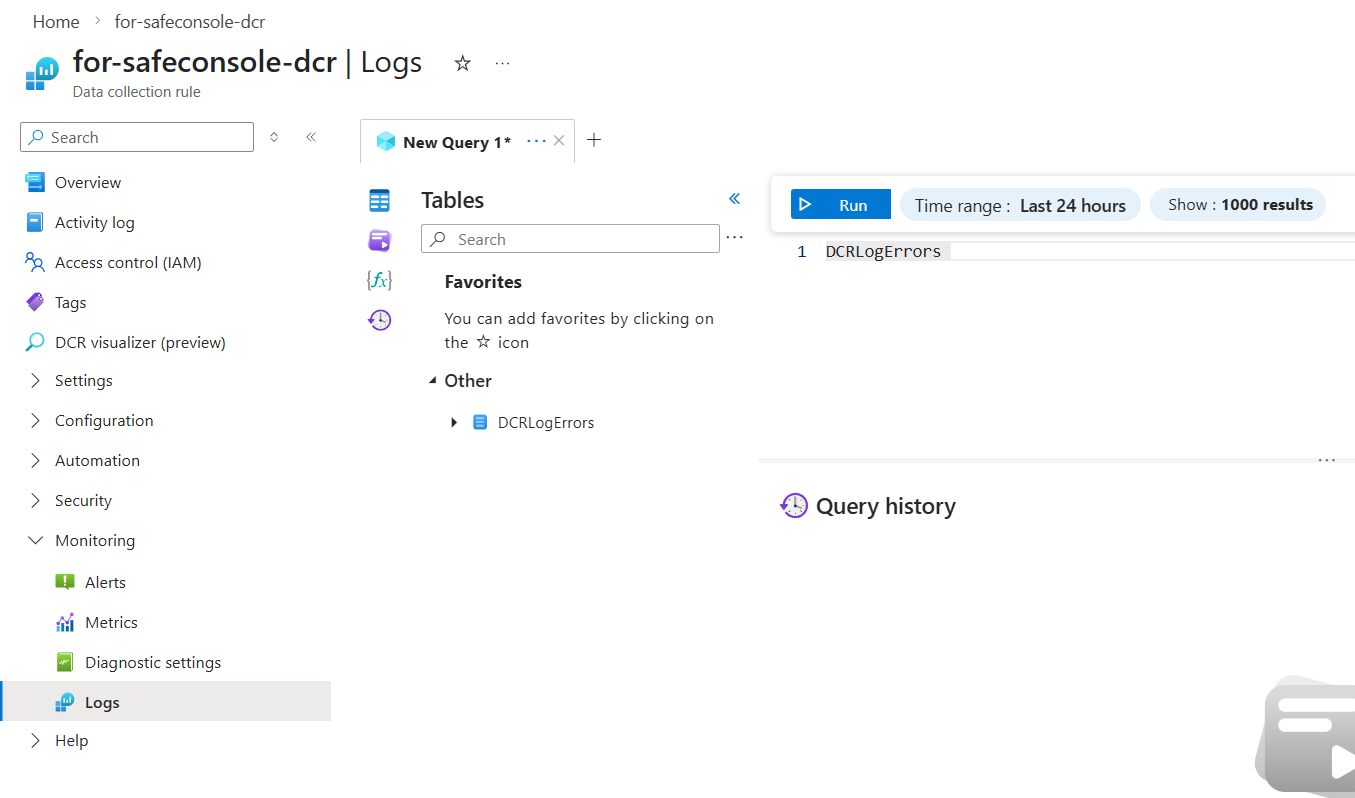
Figure (35): DCR Logs view — DCRLogErrors table visible under Other after diagnostics are enabled.
Common Issues
Additional References
• Logs Ingestion API Overview – Azure Monitor
• Create a Microsoft Entra App Registration & Service Principal
• Create a Custom Table in Log Analytics
• Data Collection Rules Overview